SumeruAI MugenMorph: 3D Lip Sync for Unreal Engine and Unity
Send a speech clip to the SumeruAI cloud API and play ARKit blendshape weights on an existing Unreal or Unity character. Facial animation today; voice-to-motion next.
SumeruAI MugenMorph is Sumeru AI’s audio-driven performance solution. It sends a speech clip to the SumeruAI cloud API and plays the returned ARKit blendshape weights on a compatible 3D character in Unreal Engine or Unity. Developers can use it to add speech-synchronized lip movement and facial animation to an existing character. It does not generate a character, and it does not run the model locally.
MugenMorph today covers audio-driven facial animation (lip sync / face). Future releases will add voice-to-motion — speech-driven body performance — in the same product.
MugenMorph is available as an Unreal Engine plugin and a Unity package, both connected to the SumeruAI cloud API. The Unreal Engine plugin is listed on Fab; if you install from Fab, use the zip that matches your engine version. The Unity package (`com.sumeruai.atf`) is available on GitHub as a Package Manager Git URL, a .unitypackage, or a folder you copy into Assets.
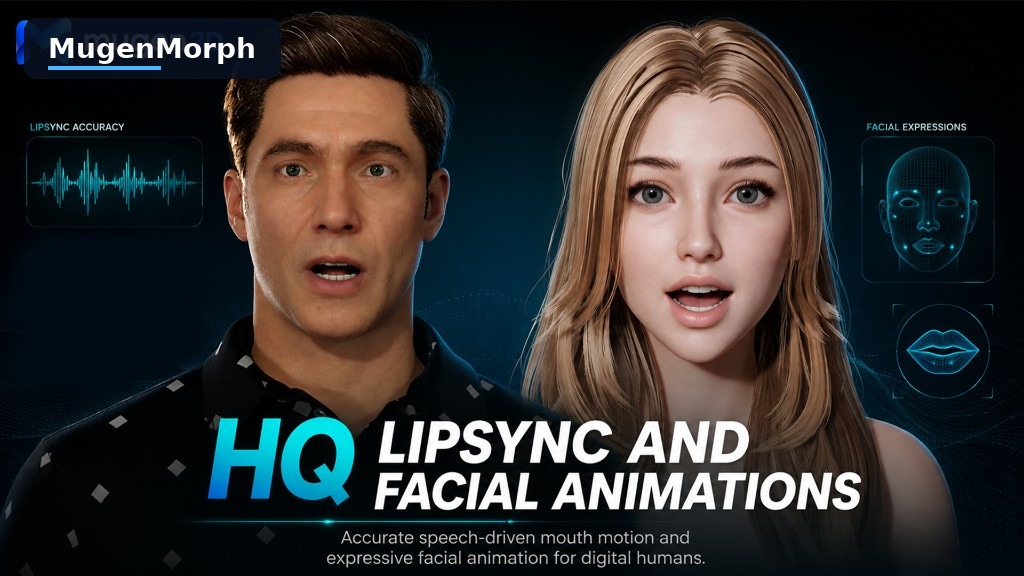
What Does MugenMorph Do?
MugenMorph connects spoken audio to an existing character's facial rig. Instead of displaying a pre-rendered talking-head video, the integration applies ARKit blendshape weights to a character inside the engine.
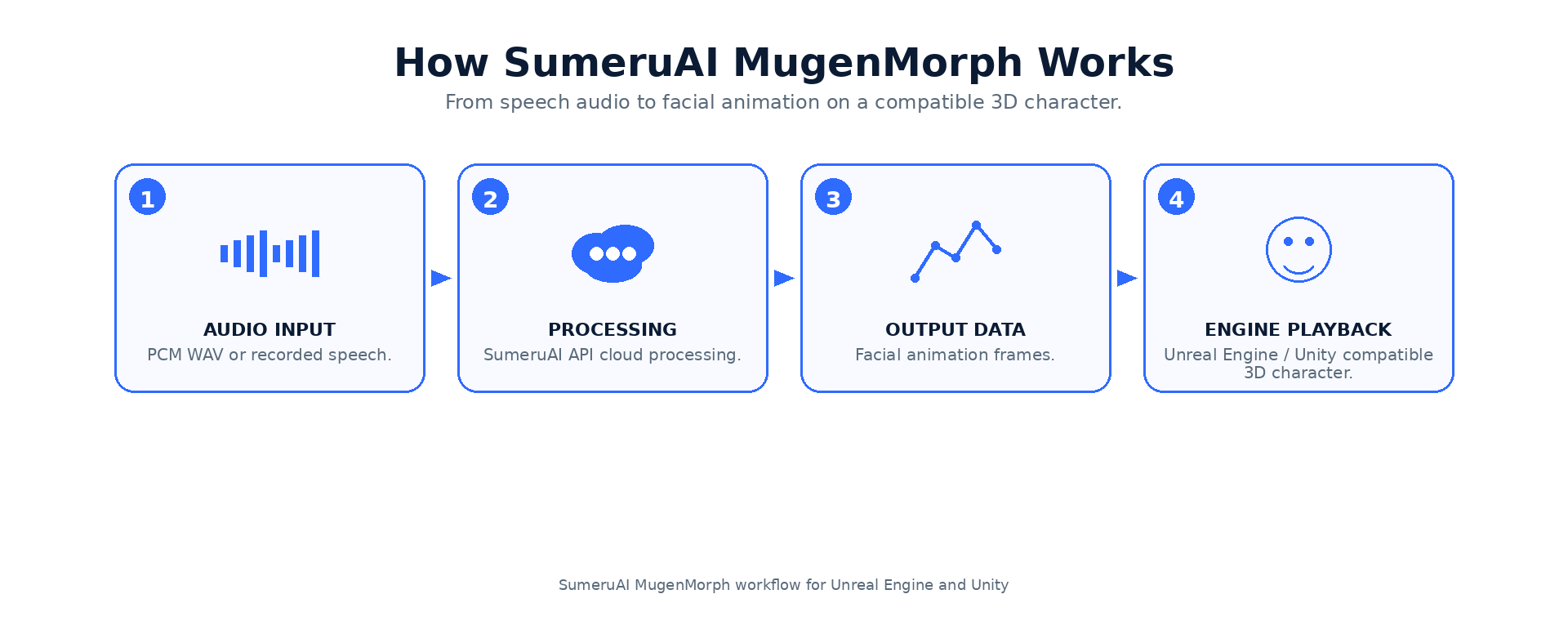
A typical session starts with a WAV clip. The sample records the microphone as 16-bit PCM WAV at 16 kHz (Unreal downmixes to mono). That clip is uploaded to the SumeruAI API. After the API returns, the plugin plays audio and applies ARKit weights to the face. This is clip processing, not a live audio stream: recording stops, the request completes, then playback starts.
This makes MugenMorph relevant to developers building character dialogue, digital-human demonstrations, and interactive 3D experiences. Today it provides facial animation; a complete AI character still needs dialogue, speech-recognition, and speech-generation systems. Voice-to-motion will arrive later in the same product line.
Supported Platforms and Characters
| Integration | Engine requirement | Character setup | Official access | Runtime note |
|---|---|---|---|---|
| Unreal Engine plugin | UE 5.3 or later; choose a package for your engine version | MetaHuman (Face Sync before RigLogic) or a custom face with ARKit-named morph targets | Fab plugin listing | Plugin modules are Win64-only |
| Unity SDK | Unity 2020.3 LTS or later; Built-in, URP, and HDRP | A face with ARKit-named blendshapes | Unity GitHub repository | Sample character is Xandra; local WAV picker is Editor-only |
These requirements are documented in the Unreal Engine integration and Unity integration. The sample path is MotionType.ARKit. FLAME and bone-driven modes exist in the runtime but are not the getting-started path. Check the current package documentation before choosing an engine version for a production project.
MetaHuman in Unreal Engine
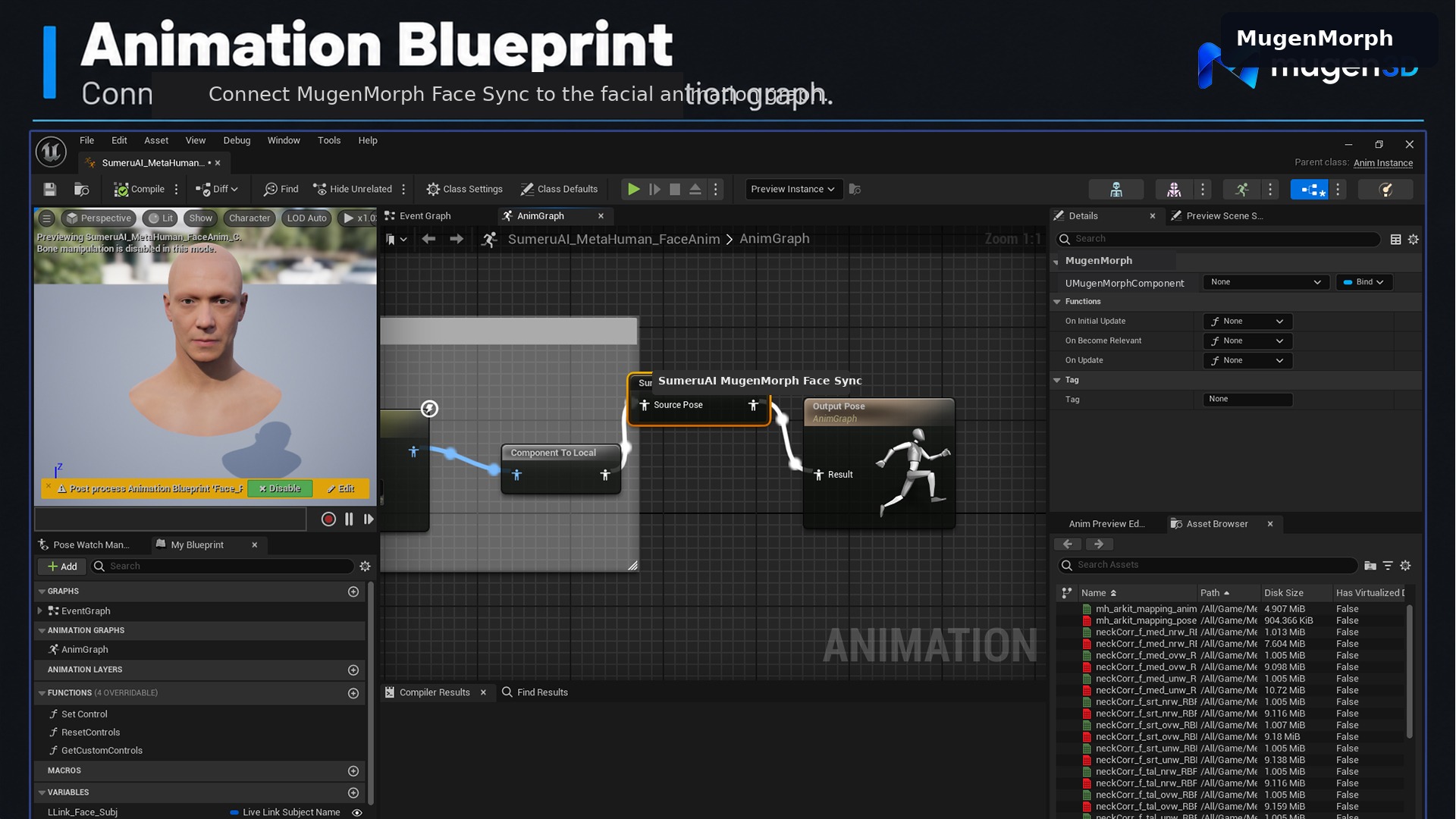
Official MetaHuman mouths are RigLogic control curves, not SetMorphTarget("JawOpen"). Use SumeruAI → Setup MugenMorph on Selected Actor. That adds UMugenMorphComponent, keeps the MetaHuman Face AnimBP, and inserts the SumeruAI MugenMorph Face Sync node before RigLogic. The node writes ARKit names and CTRL_expressions_* curves onto the pose (for example JawOpen → CTRL_expressions_jawOpen) so RigLogic can deform the face.
Confirm this chain in Face AnimBP: SumeruAI MugenMorph Face Sync → RigLogic → Output Pose. If Face Sync connects straight to Output Pose with no RigLogic after it, MetaHuman mouth motion will not be correct. Leave bReplaceAnimInstance off for MetaHuman. An optional LiveLink AnimGraph node also exists; it is not required for the MetaHuman sample.
Developers provide their own MetaHuman. The public plugin does not include MetaHuman mesh, skeleton, or Epic's Face_AnimBP. Import a MetaHuman first so /Game/MetaHumans/Common/Face/Face_Archetype_Skeleton exists. This public plugin also does not include Avatar, DNA.
Custom Characters in Unity and Unreal Engine
Custom characters must already have ARKit-named shapes. In Unity the plugin matches blendshape names on each SkinnedMeshRenderer (case-insensitive substring). In Unreal it matches morph-target names, or MetaHuman CTRL_expressions_* aliases. Examples: JawOpen, MouthSmileLeft, EyeBlinkLeft. Installing MugenMorph does not create missing shapes or rig an unprepared mesh.
A blendshape, also called a morph target, is a named deformation of the face. The plugin drives those existing shapes with animation weights; it does not create missing blendshapes or automatically rig an unprepared model.
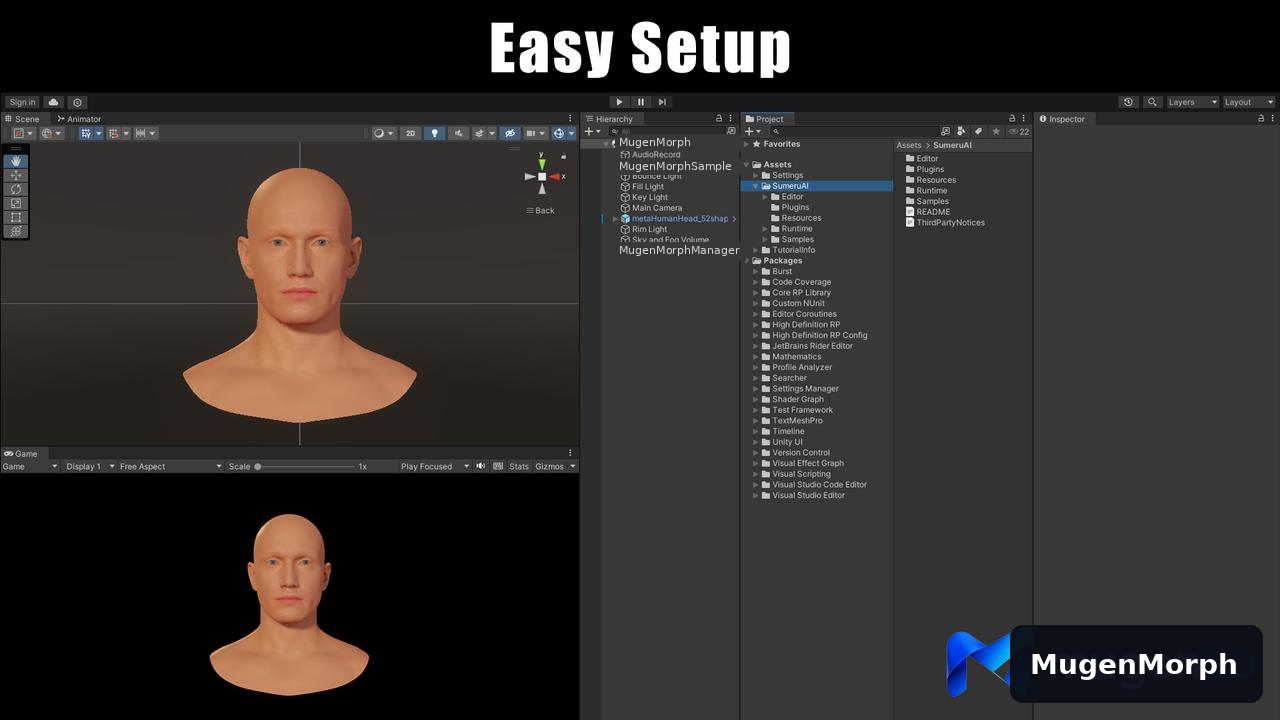
How the MugenMorph Workflow Works
- Prepare a compatible character. In Unreal, import your own MetaHuman or an ARKit-named face. In Unity, use the Xandra sample or a SkinnedMeshRenderer with ARKit-named blendshapes.
- Install the engine integration. Add the Unreal Engine plugin to Plugins/, or add the Unity package (Package Manager Git URL, .unitypackage, or copy into Assets).
- Configure API access. Obtain an Access Key and Secret Key through the Developers section of the Sumeru AI website.
- Provide speech audio. Select a PCM WAV file or record a clip using the sample's microphone controls.
- Process and play the result. After the offline-mesh request returns, the integration plays audio and applies ARKit weights to the character.
The sample workflow submits a recorded clip for processing. Microphone recording in this workflow is not continuous live audio streaming.
Exploring the MugenMorph Demo
The Unity repository includes a MugenMorph demonstration and sample-scene instructions. The Unreal Engine repository explains how to create the MugenMorph demo level and configure a character. When reviewing a demo, look at three things: whether mouth movement follows the speech, whether the facial rig responds without visible distortion, and whether the result remains synchronized through pauses and the end of the clip.
For an initial test, use a short recording with clear speech. This makes it easier to distinguish an audio-input problem from a character-mapping or playback issue. If the face does not move, check blendshape or morph-target names before assuming the API failed. On MetaHuman, also confirm Face Sync sits before RigLogic. A second request sent while one is in flight is ignored.
Where MugenMorph Fits in a Character Project
- Game dialogue: speech-synchronized faces for compatible NPCs.
- Digital-human prototypes: demonstrations of a character speaking in a 3D scene.
- Virtual guides and teachers: facial playback for spoken explanations.
- Interactive characters: facial animation connected to audio produced by other systems.
- Coming: voice-to-motion — body performance in the same product.
The result depends on the audio, character rig, mapping, and project configuration. Test representative dialogue on the actual target character before committing to a production workflow.
Frequently Asked Questions
- Is SumeruAI MugenMorph a character-generation tool?
- No. This integration animates compatible existing faces from speech audio. It does not replace character modeling or facial rigging.
- Does MugenMorph run entirely offline?
- No. The documented integrations send audio to the SumeruAI cloud API and require network access. The term “offline” in the clip-processing endpoint does not mean that the model runs locally without an internet connection.
- Can I use my own character?
- Yes, provided it meets the integration's facial-rig requirements. For the ARKit workflow, check the blendshape or morph-target names before attempting playback.
- Is the Unreal Engine plugin free?
- As checked on September 16, 2026, the Fab listing shows the plugin as Free. Cloud API usage is separate and follows the terms of the developer's SumeruAI account.
- Does it stream from the microphone in real time?
- No. The sample records a clip, then PlayFromAudio uploads that clip. This MugenMorph path is not a live streaming lip-sync pipeline.
- What audio format does the API take?
- The request sends WAV bytes. The sample recorder is 16 kHz, 16-bit PCM. Unreal's recorder downmixes to mono. Returned audio may be WAV, MP3, or PCM for playback; that is not the upload format.
- Which platforms are supported?
- The Unreal plugin modules are Win64-only. Unity 2020.3 LTS or later is documented; the sample runs on Built-in, URP, and HDRP. Playback decoding uses NAudio.
- Does using MugenMorph make a character conversational?
- Not by itself. MugenMorph today handles audio-driven facial animation. Conversation logic, speech recognition, and voice generation are separate parts of an interactive-character application. Voice-to-motion is planned as a future capability in the same product.
Get Started with SumeruAI MugenMorph
- Get MugenMorph For UE on Fab.
- Read the Unreal Engine setup documentation.
- Download the Unity SDK and read its setup guide.
- Visit Sumeru AI for developer access.
Start with a sample scene and one short audio clip, then test your own character in the same configuration. In Unreal, run Setup MugenMorph and confirm Face Sync comes before RigLogic.